How to schedule posts on TikTok using the web version of TikTok
If you are an active content creator, scheduling your content can help you save time and post more regularly. It also lets you post when most of your target audience is active. Posting at those peak times will lead to better engagement and more views.
The TikTok official website and third-party tools are common ways to schedule posts.
In this article, you will learn how to schedule TikTok posts through the TikTok web, as well as the four best social media management tools that you can use to schedule TikTok posts.
How to schedule a post on TikTok with TikTok’s web version
Using the TikTok web version (without using external tools), you can schedule your posts within 15 minutes and up to 10 days before publishing. The post will be visible both in the app and on TikTok’s web version.
Note: Scheduling posts using the TikTok web is available only for Business Accounts and Creator Accounts. Please use the guide below to switch the account to a Creator Account or Business Account.
- Open TikTok and tap profile.
- Tap Menu in the top-right corner, tap Settings and privacy, then tap Account.
- Depending on the type of account you want to switch to, tap on Switch to Business Account or Switch to Creator Account and follow the steps in the application.
To schedule posts using the TikTok website, follow these steps:
1. Open your web browser and go to the official Tiktok website at https://tiktok.com/.
2. Log in to your account if you are not already logged in.
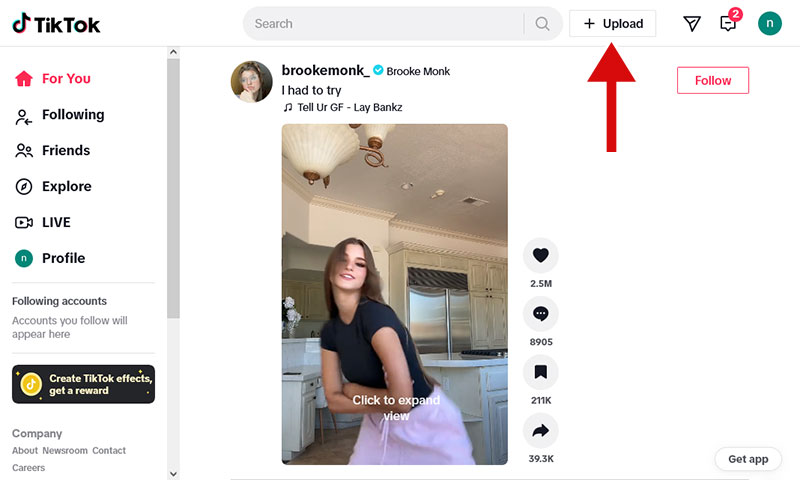
3. Click on the Upload button at the top right of the page.
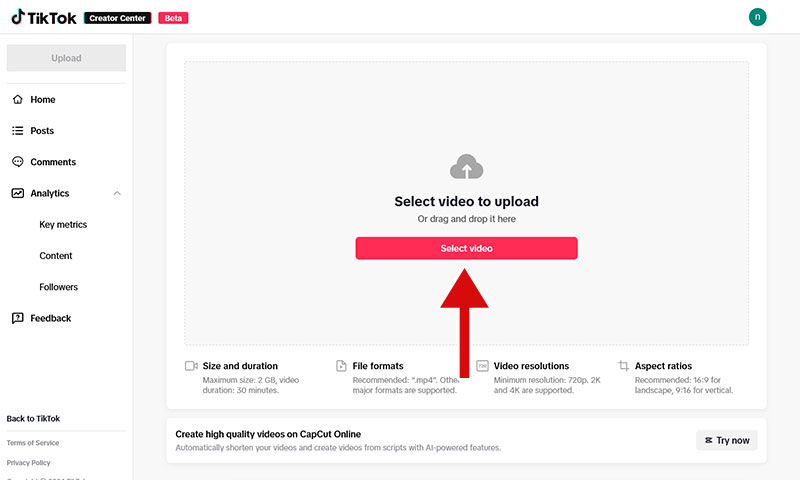
4. Click on the Select video button and choose the video you want to upload.
5. Enter captions, hashtags and make all the necessary settings.
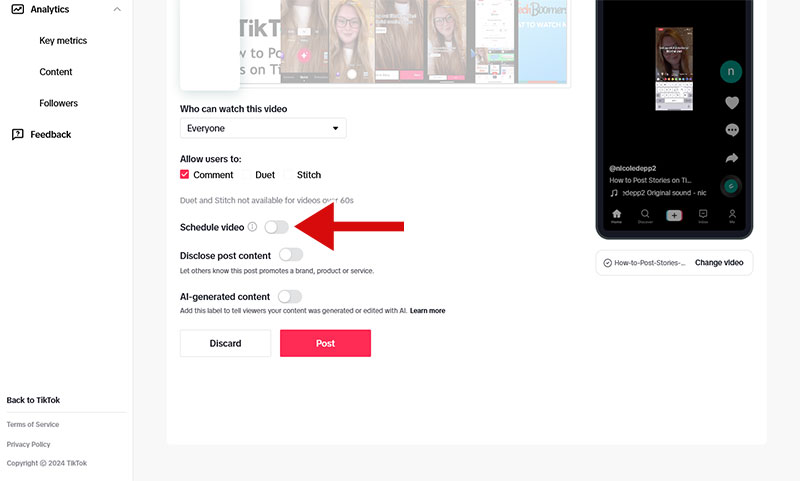
6. Toggle on the Schedule video option.
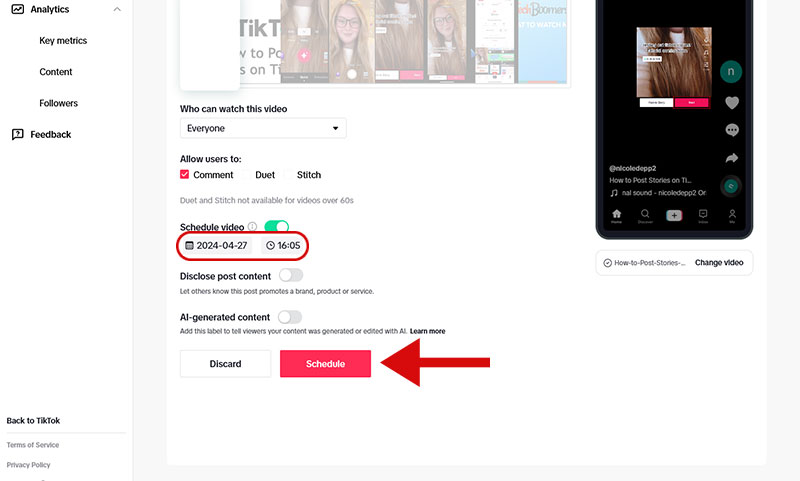
7. Specify the date and time and click on the Schedule button.
Note: you will not be able to edit the video, subtitles or scheduled time after scheduling a post. In order to edit the video or change the scheduled time, you should delete the scheduled post and re-upload it after making the required changes.
After the post is published, you will receive a push notification from TikTok confirming the scheduled post went live.
Scheduling TikTok posts using social media management tools
Publishing content on TikTok on a scheduled basis using the web version is quick. However, you can only schedule posts up to 10 days in advance. To schedule your posts for more than 10 days in advance, you need to use social media management tools.
Top 4 social media management tools
1. Loomly
Loomly is a powerful social media manager and scheduling tool. It allows you to schedule TikTok posts for publishing at the required time.
2. SocialPilot
SocialPilot is a powerful social media marketing tool with tons of amazing features. This tool can be used to schedule TikTok posts and view video statistics.
3. Crowdfire
Crowdfire is a social media management tool that can also be used to schedule and publish TikTok posts on a regular basis. This tool is less expensive than other tools and offers a free plan with limited features.
4. Later
Later is another social media management tool that can be used to schedule TikTok posts for automatic publishing. All pricing plans have a free trial.
Benefits of scheduling TikTok posts
1. Post at the right time
Scheduled posting allows you to post your content at the time when it’s most likely to be seen by the majority of your audience. In other words, you get the most views.
When your target audience lives in different time zones, you should set the sending time of posts according to the local time where your audience is located (even though this may be inconvenient for you), which will be simple to do by scheduling your posts.
2. Save time
Scheduling TikTok posts can save you time and allow you to focus on doing other activities such as engaging with your audience, doing other projects, etc. Dedicate 1 to 3 days to content creation and spend the rest of the week doing other activities.
3. Regular content publication
By scheduling your posts, you can build a regular timetable for posting and inform your audience about it. This will help keep them engaged and let them know when to visit your page to see new content.
The publishing schedule of the post must be followed. Otherwise, the audience may become dissatisfied with the irregular posting schedule.
4. Increase engagement
Posting on a scheduled basis means that you will be able to post more often. The more you post, the more you are exposed, the more your audience will be engaged, and the more followers you will get. As the number of followers grows, so does exposure, and engagement increases.
5. Improve content quality
Scheduling TikTok posts helps you manage your time and create high-quality content. You will no longer need to publish posts in a hurry. Set aside 1-3 days a week to create content and plan the time of their publication. So more attention will be paid to the quality of the content that you will be creating.
Frequently asked questions
Does TikTok have a native post scheduler?
Yes, you can schedule posts through the official TikTok website.
Can I schedule posts using the TikTok application?
No, currently TikTok app does not offer post scheduling. However, you can easily schedule posts via the TikTok official website.
What are the requirements for scheduling TikTok posts via the web version?
To schedule TikTok posts using the TikTok web version, you must have a Business Account or a Creator Account. You can change the account type to Business Account or Creator Account by going to Settings ~> Account in the TikTok app.
How many days can TikTok posts be scheduled?
You can schedule TikTok posts from 15 minutes to 10 days before publication using TikTok’s web version. Using social media management tools, you can schedule TikTok posts for as long as you like.
Can I edit scheduled posts on TikTok?
If you are using TikTok’s web version to schedule TikTok posts, no. If you want to edit a scheduled post, you will need to delete the post, re-upload it, and reschedule it after editing.
If you are using external tools, you can edit the scheduled posts whenever you want.
How to delete a scheduled post on TikTok?
If you have scheduled a post via the TikTok web version, you can delete the scheduled post using both the TikTok web version and the TikTok mobile application.
Deleting a scheduled post through the TikTok web version:
- Open your web browser and go to the official TikTok website at www.tiktok.com.
- Tap the Upload button at the top right of the screen.
- Tap Posts in the menu.
- Tap on the Trash icon next to the name of the scheduled post.
- Click on the Delete button.
Deleting a scheduled post through the TikTok mobile application:
- Open the TikTok application.
- Tap Profile at the bottom of the screen.
- Open the scheduled post.
- Tap the More options button.
- Tap Delete.