What is the Stitch feature in TikTok and how to use it?
One of TikTok’s most effective and attractive features is Stitch, which allows you to combine your video with another user’s video and react to a specific part of another user’s video.
TikTok has many features for users to create and edit videos, such as effects, music, and filters that help make videos more attractive. Stitch is one of the new features of TikTok that has been added to this application for making videos.
The Stitch feature was added to TikTok on July 24, 2020, and after a short time, it became one of the most popular features on TikTok. In this article, we will discuss how to stitch videos in TikTok and provide tips for using this feature.

How to stitch videos in TikTok?
To stitch another user’s video in TikTok, do the following steps:
1. Open the TikTok app and find the video you want to stitch.
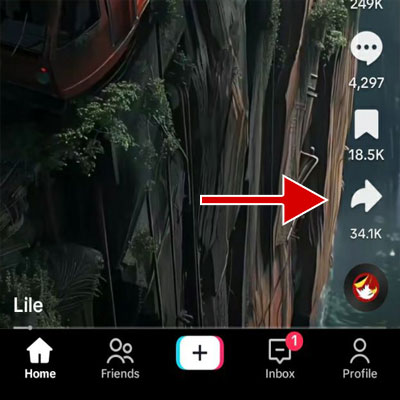
2. Tap the Share button.
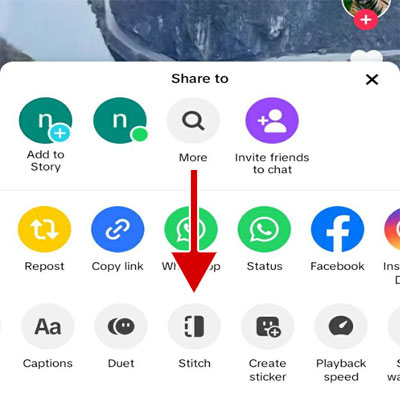
3. Tap Stitch at the bottom of the screen. If you don’t see the Stitch option, swipe on the options to see the Stitch option.
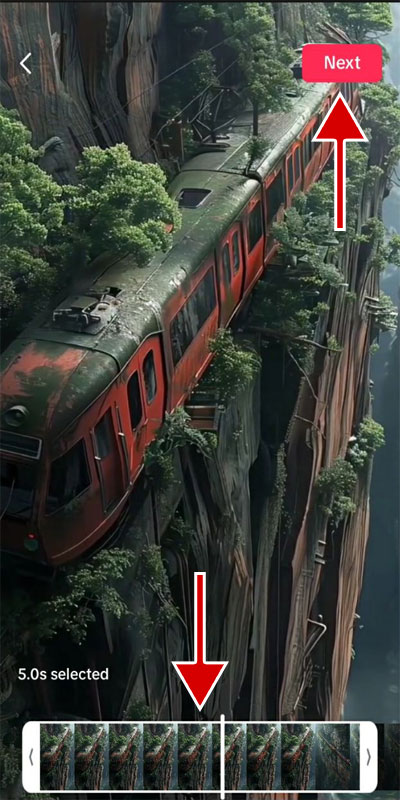
4. Select the part of the video you want to stitch and then tap Next.
5. Select the duration of the video you want to record. Tap the Record button and record your reaction to the video.
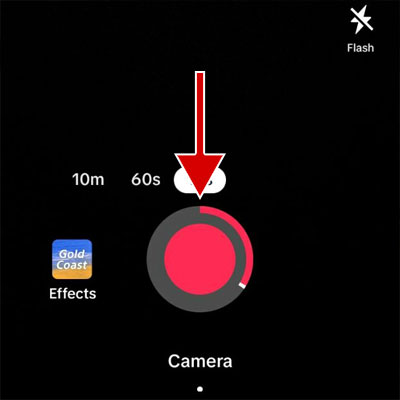
6. Make your desired changes to the video, such as adding text, stickers, filters, and effects. Then tap Next.
7. Enter the desired description and hashtags and tap on Post.
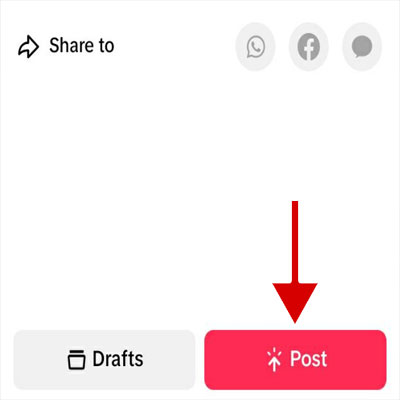
8. After a short time, your video will be published as a new post.
Note: If the Stitch option was disabled, it means that the video owner has disabled this feature, and you cannot stitch that video.
Tips for using Stitch
Appropriate reaction
Before recording the reaction, you should think about the best reaction you can have to this video. Try to have creative and unique reactions to attract more attention.
Choose the right video
The video you want to react to should be interesting and provocative enough to encourage viewers to see your reaction.
Technical Principles
Viewers should see and hear your reaction well. So make sure you have good lighting and your voice is heard clearly.
If the place where you plan to record the video has good natural light, you don’t need to use artificial lights. Sit in front of the window so the natural light shines directly on you. You can also use thin, transparent curtains to spread the light.
But if natural light is not available, you can use an artificial light source such as a reading lamp or ring light. You can also use a diffuser to spread the light and eliminate shadows.
Record video in a quiet, echo-free location. You can use an external microphone to increase the sound clarity.
Increasing the chance of going viral
If your video needs editing, you can add text, stickers, effects, or filters to it using TikTok tools. Using these tools will help make your video more attractive.
Although entering hashtags and captions is not required to publish a video, they play a big role in making it go viral. TikTok uses this information in its video recommendation system. Therefore, it is better to use relevant and popular hashtags for your video. Also, try to enter suitable and complete text for the caption.
Compliance with the rules
Make sure that another user’s video stitch does not violate copyright. Also, don’t use Stitch to make offensive, violent, and spam videos.
How to prevent users from stitching your videos
As a video creator, you may not want your videos to be stitched by others. In this case, you can prevent users from stitching your video or all of your videos.
How to prevent users from stitching a particular video
1. Go to your profile section in the TikTok application and then open the desired video.
2. Tap on the More Options icon in the lower right corner of the screen.
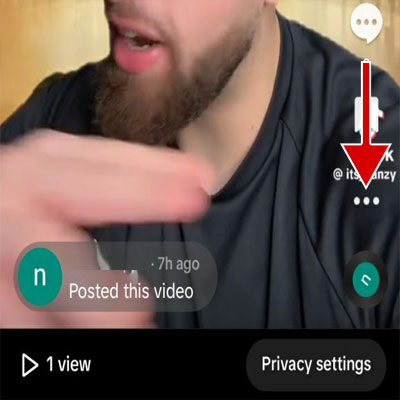
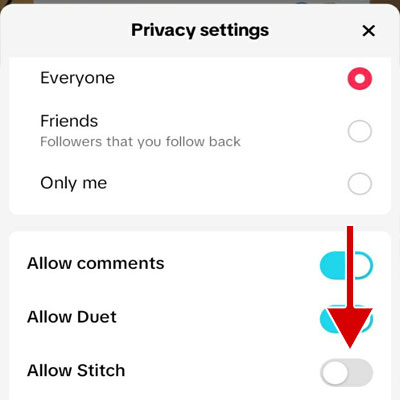
3. Tap Privacy at the bottom of the screen.
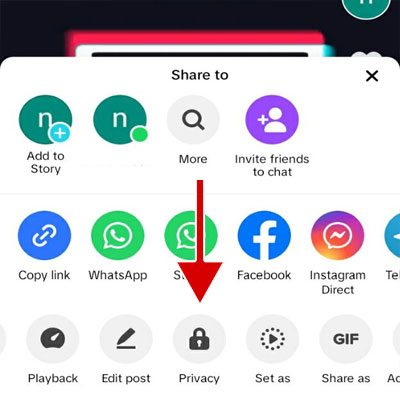
4. Turn the Allow Stitch option off.
How to prevent users from stitching all of your videos
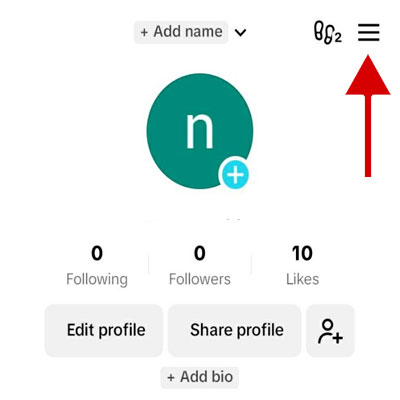
1. Go to your profile in the TikTok application.
2. Tap the Menu button at the top of the screen.
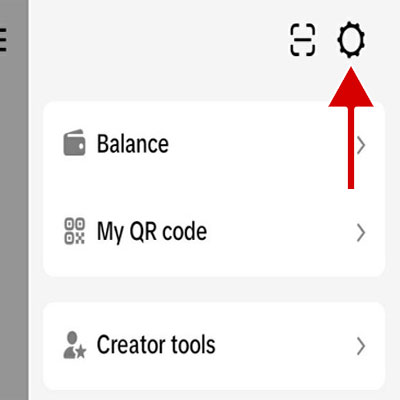
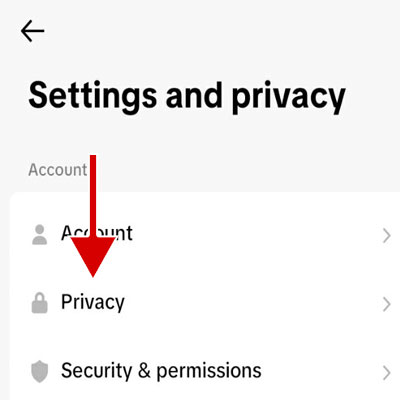
3. Tap the Settings button and then select the Privacy option.
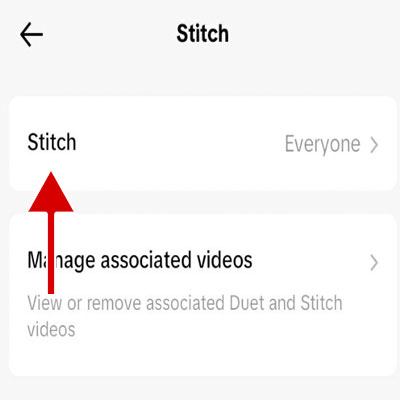
4. Tap on the Stitch option.
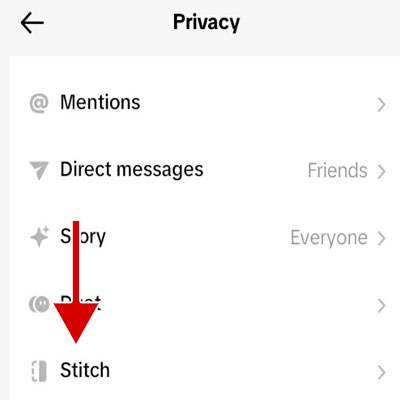
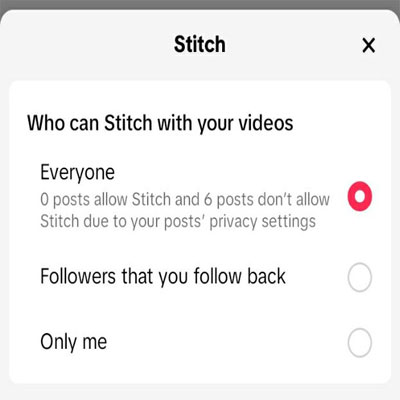
5. Tap on Stitch and select the people you want to permit Stitch. If you choose the Only Me option, no one but you will be able to stitch your videos.
Frequently Asked Questions
The difference between Stitch and Duet in TikTok
Both Stitch and Duet are tools for using other people’s videos or reacting to other people’s videos. The main difference is in how the video is displayed. When you stitch a video, the original video will play first, followed by the video you’re recording. But when you use Duet, the original video and the video you are recording will be played in two separate frames simultaneously.
How to find Stitches in TikTok
In TikTok, videos made using the Stitch feature are published with the hashtag #Stitch. Just enter the keyword Stitch in the search bar to find these videos.
How can I see videos made by stitching my videos?
1. Go to your profile in the TikTok application.
2. Tap the Menu button at the top of the screen.
3. Tap the Settings button.
4. Tap on the Privacy option.
5. Tap the Stitch option and select the Manage associated videos option.
6. In this section, you can see stitched videos.
How can I watch stitched videos from a specific creator?
Go to the Home section of TikTok and then tap on the search icon. Search #Stitch @creatorusername in the search bar.
Can I use the Stitch feature for private videos?
No, the Stitch feature is only for videos published publicly on TikTok.
Can I stitch my videos?
Yes, you can stitch your videos.
Why is the Stitch option disabled?
The video owner may have disabled Stitch or the video may have been posted privately.
Is it possible to Stitch live videos?
No, it is not possible to stitch live videos.